

You're almost there. Let's get you set up.
Ready to install LaunchOS? Click try again to start your download.
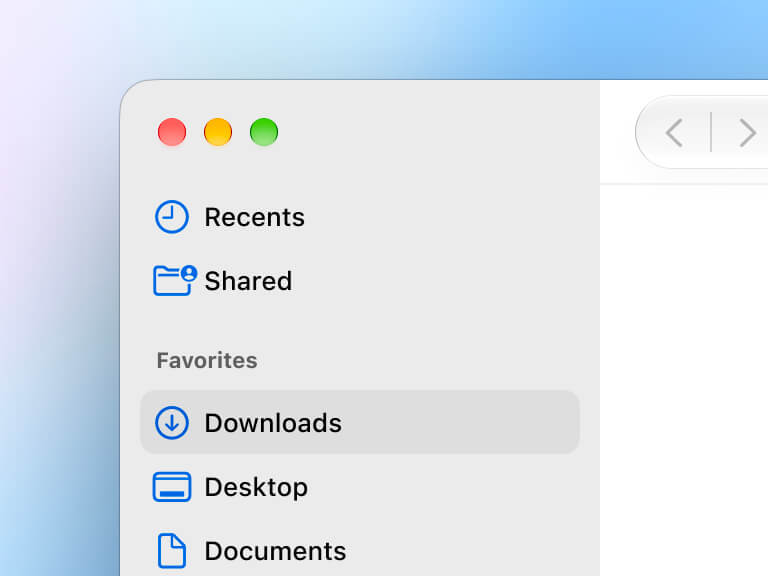
1. Open LaunchOS.dmg from your Downloads folder.
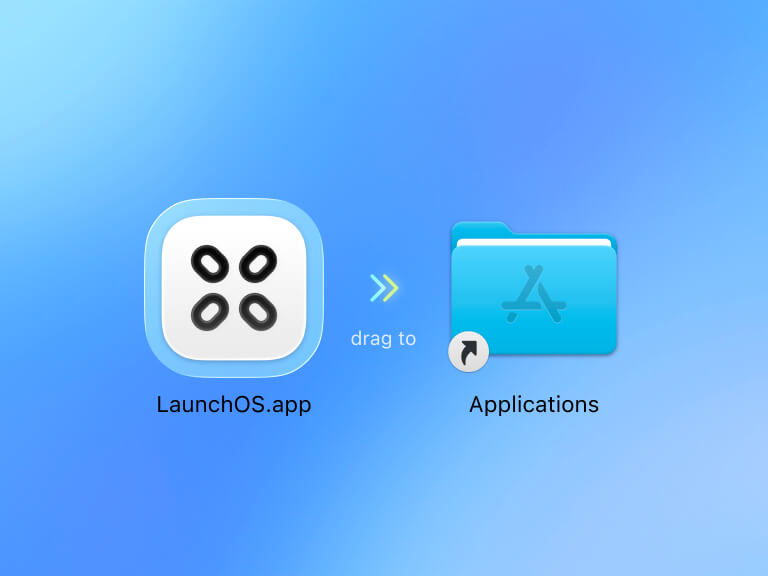
2. Drag LaunchOS to the Applications folder. Then you can eject the LaunchOS disk.
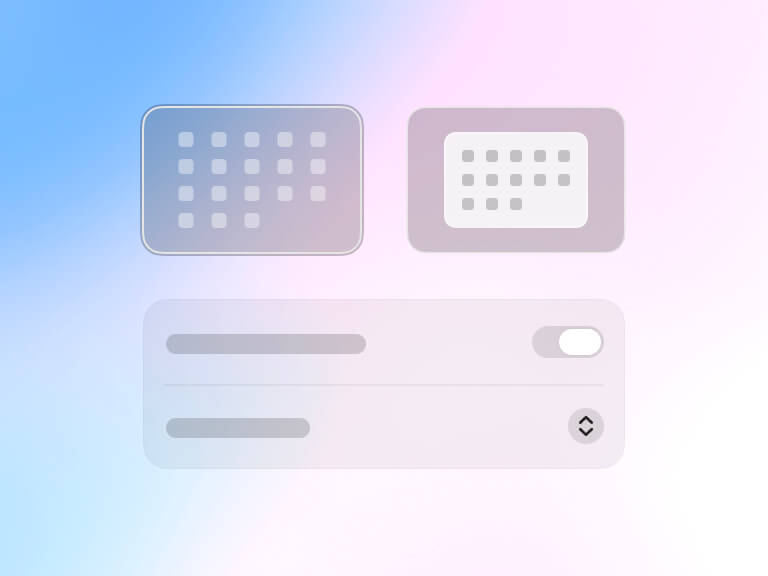
3. Open LaunchOS from the Applications folder and follow the setup instructions. Enjoy it!
Tips
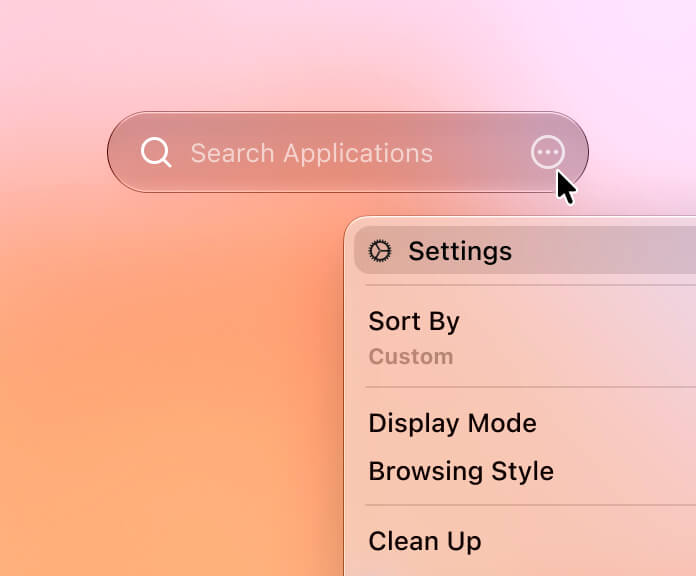
1. Click the (···) button in the search bar, or right-click a blank area in LaunchOS, to open the main menu and Settings.
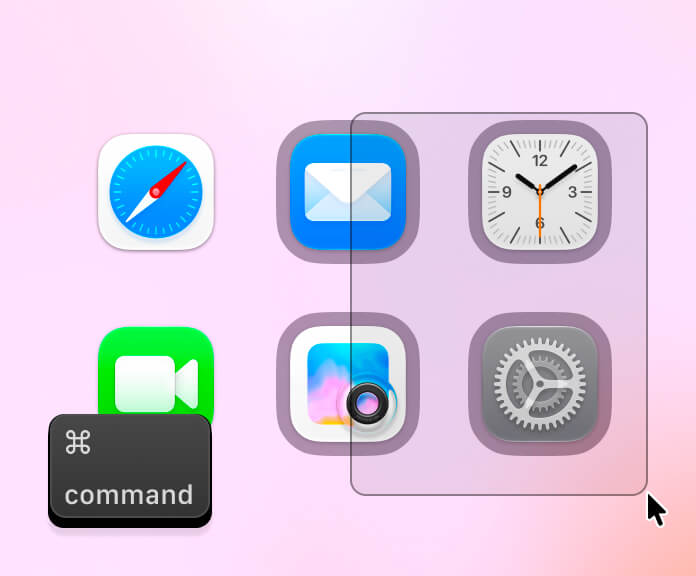
2. Hold down Command (⌘) and click individual items, or click and drag to select several at once.
FAQs
Yes. LaunchOS can import the app order, pages, and folders from your original Launchpad layout, provided the layout data is still available on your Mac.
Yes. LaunchOS supports importing layouts from some popular Launchpad alternatives. Click Restore during initial setup or in Settings → Advanced. LaunchOS will automatically detect supported alternatives installed on your Mac and let you choose a layout to restore.
No. LaunchOS runs as a separate app. It doesn’t modify Apple’s Launchpad or macOS system files.
LaunchOS recreates the classic Launchpad experience, which doesn’t fit Apple’s App Store review requirements. We distribute it directly through our website.
LaunchOS only requests permissions when you use features that need them. Trackpad gestures and F4 launching require Accessibility permission on macOS 26, called Device Control and Data Access on macOS 27. Full Disk Access is needed for complete uninstallation, so LaunchOS can find and remove an app’s related files.