

macOS 26 vs 27: What’s Different, and Should You Upgrade?
macOS 27 is worth considering for everyday office users already running macOS 26. It builds on Tahoe’s design, improves Liquid Glass readability, everyday search, and the app experience, and introduces Siri AI. If your Mac is supported and your regular apps are compatible, 27 is a natural next step without abandoning familiar habits.
If you depend on professional plug-ins, drivers, or business software that has not been updated for compatibility, you can stay on macOS 26. Intel Macs are outside macOS 27’s official support list.
macOS 26 vs 27: the main differences
| Area | macOS 26 Tahoe | macOS 27 Golden Gate |
|---|---|---|
| Liquid Glass | Introduces the glass-style design; 26.1 adds clear and tinted appearances | Adds an appearance slider, with improved readability and visual consistency |
| Toolbars and sidebars | Uses Tahoe’s new interface layout | Makes toolbars more uniform and extends sidebars to window edges |
| Search and everyday tasks | Provides the redesigned Spotlight search and actions | Improves Spotlight, Mail search, AirDrop, and network file browsing |
| Siri | Includes some Apple Intelligence features | Adds Siri AI in beta and a dedicated Siri app |
| Classic Launchpad | Replaced by app browsing in Spotlight | Classic Launchpad has not returned |
| Supported Macs | Supports selected Intel Macs and eligible Apple silicon models | Supports eligible Apple silicon Macs and MacBook Neo; no Intel Macs |
For people already using 26, the value of 27 lies mainly in interface refinements, everyday efficiency, and new intelligent features, without having to learn a completely different desktop workflow.
Liquid Glass: finer controls and a more consistent interface
macOS 26 brings Liquid Glass to the Dock, toolbars, and sidebars, alongside more ways to personalize icons and folders.
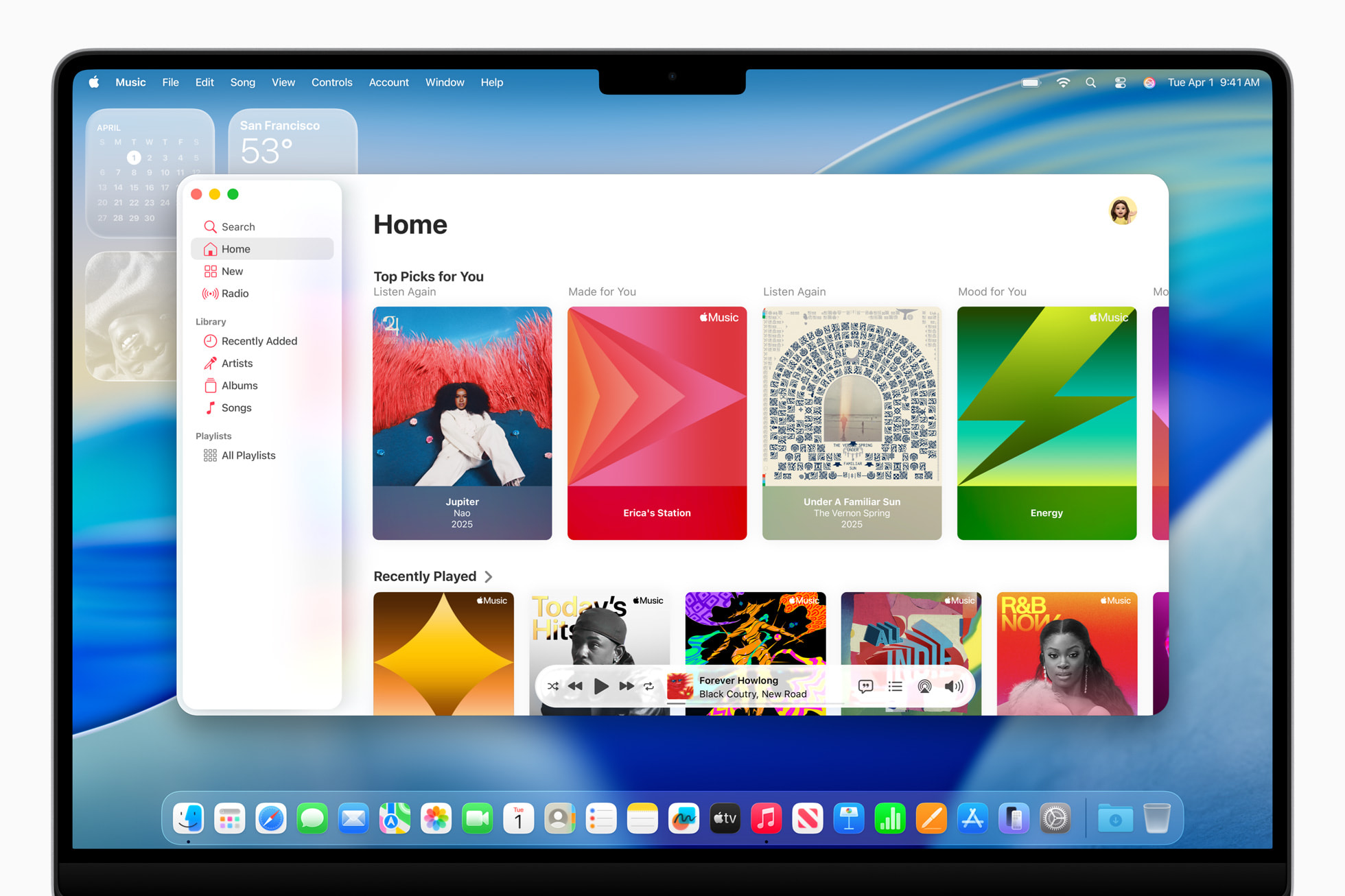
The Music app in macOS 26. Image source: Apple Newsroom.
macOS 26.1 already offers clear and tinted appearances. Building on that, 27 adds a continuous slider for finer control over the glass effect, improves text readability, makes toolbars more uniform, and extends sidebars to window edges. Apple’s design overview
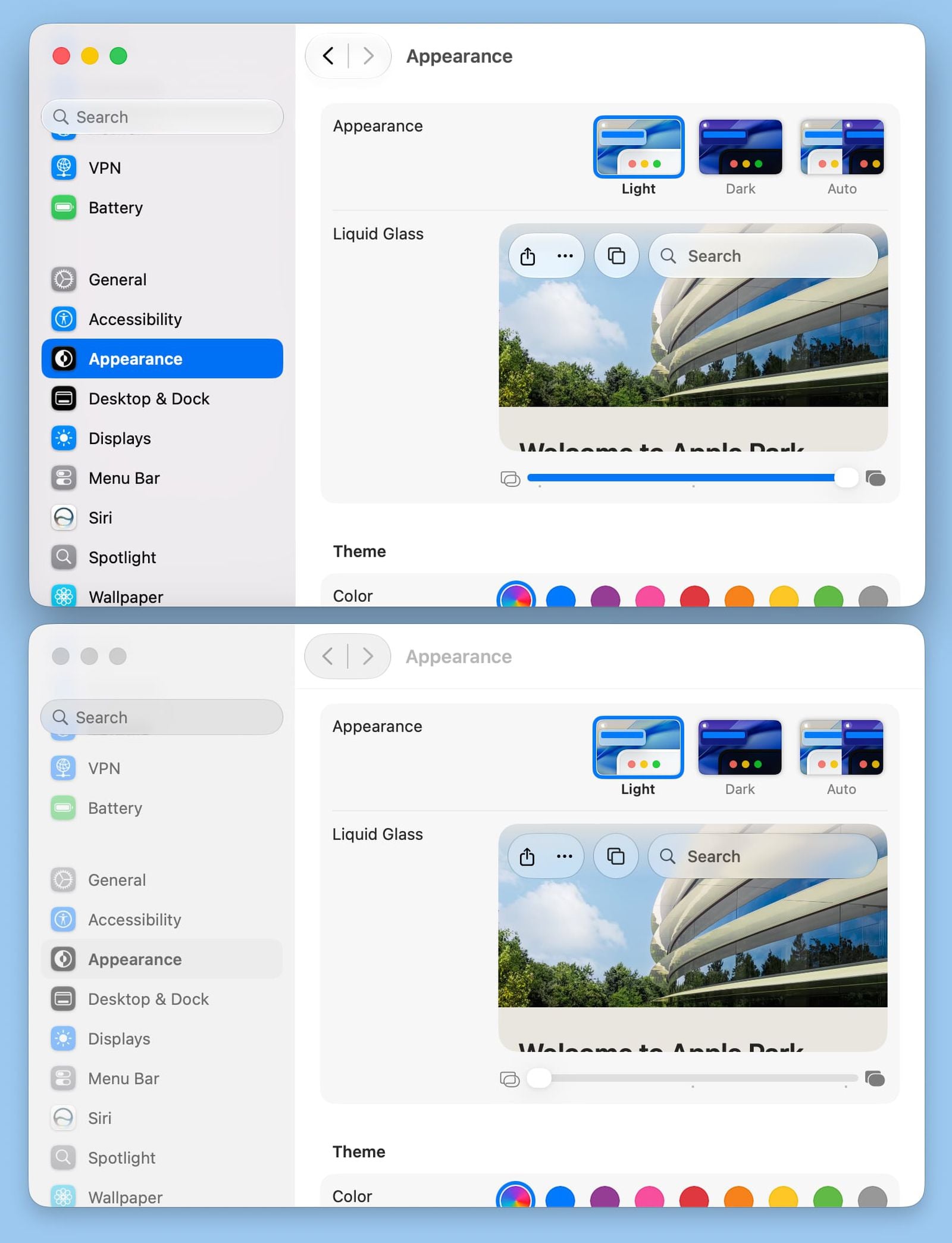
Adjust the clear and tinted Liquid Glass effects in System Settings → Appearance. Image source: MacRumors.
If you like Tahoe’s overall direction but find some transparent areas hard to read, 27 is more appealing. It keeps the Liquid Glass style while giving you more flexible appearance options.
Performance and search: improvements to everyday tasks
macOS 27’s optimizations cover Spotlight and Mail search, AirDrop, and network file browsing. These changes directly affect everyday tasks such as finding files, searching email, and transferring documents. macOS 27 release notes
For users who mainly work with browsers, documents, and messaging apps, responsiveness in daily use is the main benefit. For video editing, audio production, 3D, and development, compilation and export times still depend on the software, project, and hardware configuration. Better search and interface behavior do not mean every professional task will run faster.
Moving from 26 to 27 is best seen as an improvement to everyday use rather than a hardware performance upgrade.
Siri AI: a major addition in 27, currently in English beta
macOS 27 introduces Siri AI, with more natural conversations, personal-context search, and actions across apps. The dedicated Siri app lets you save and resume previous conversations.
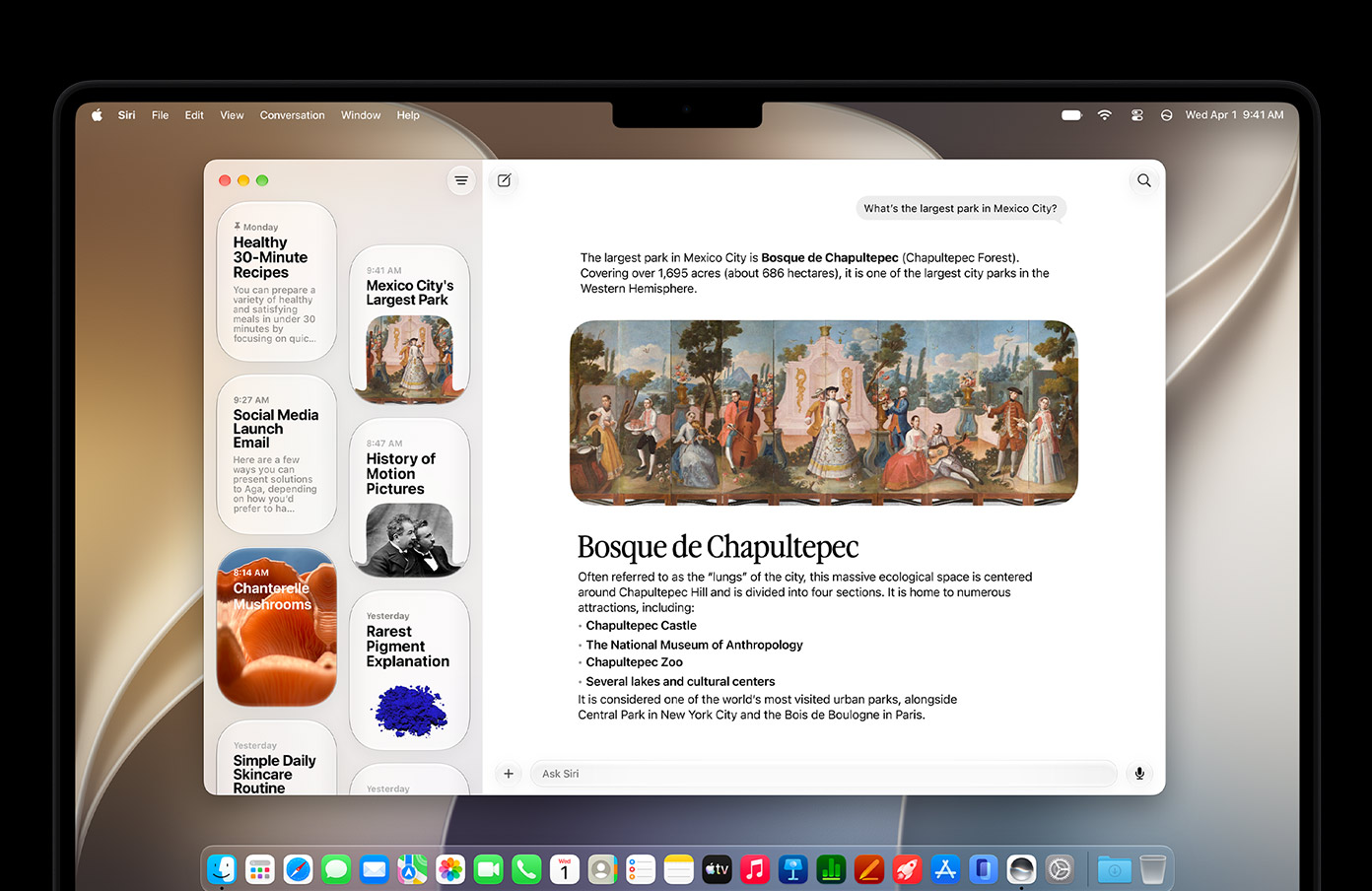
The Siri app in English. Image source: Apple.
As of October 2026, Siri AI remains available in English beta, and enabling it may involve a wait. It is currently unavailable to users whose Apple Account region is China mainland. Siri AI support information
Some Apple Intelligence features already support Chinese, but Siri AI has separate language and region requirements. For people who mainly use Chinese, particularly those with China mainland accounts, interface and everyday feature improvements are a stronger current reason to upgrade than Siri AI. Apple Intelligence availability
Launchpad: macOS 27 does not bring back the classic launcher
Both macOS 26 and 27 use Spotlight to browse apps. Upgrading to 27 does not restore the old full-screen Launchpad, manually created folders, or fixed icon layout.
The built-in app browser offers categories, a grid, and a list view. If you know an app’s name, search for it directly. To expand an app list from the Dock, you can also add the Applications folder. Apple’s app browsing guide
If you prefer finding apps by folders, pages, and icon positions, try LaunchOS. It supports macOS 26 and later, with a full-screen app grid, folders, pages, and manual sorting. The free Basic edition includes the core Launchpad-style experience.

The LaunchOS full-screen app grid.
LaunchOS also supports importing native Launchpad layout data that is still available, helping you keep your previous app order and folders. You can set up your preferred launcher on 26 first and decide when to upgrade macOS afterward.
For the steps, see How to Get Launchpad Back on the Dock on Mac.
Compatibility: Intel Macs are a key dividing line
macOS 26 supports selected Intel Macs, while macOS 27 no longer officially supports Intel. Intel Mac users should stay with a system version supported by their model. Apple silicon Mac and MacBook Neo users can check eligibility by model. Macs compatible with 26 · Macs compatible with 27
For software, everyday office users mainly need to check their regular apps. If you depend on audio interfaces, audio or video plug-ins, VPNs, or specialist peripherals, use the manufacturer’s compatibility information for your exact software and driver versions. Support for the main app does not automatically mean older plug-ins are supported too.
Should you upgrade from macOS 26 to 27 now?
| Your situation | Recommendation |
|---|---|
| You have a supported Mac and mainly use office, web, and messaging apps | Upgrade to the stable release once your regular apps are compatible |
| You like Liquid Glass but want clearer text and better appearance controls | The interface refinements in 27 make it worth upgrading |
| You want Siri AI and meet the English-language and region requirements | Upgrade to try it; Siri AI is currently in beta |
| You mainly want Chinese-language Siri AI or use a China mainland account | Do not make Siri AI your current reason to upgrade |
| You depend on plug-ins, drivers, or business software that is not yet compatible | Stay on 26 until compatibility is confirmed |
| You use an Intel Mac | Your Mac is outside the official macOS 27 upgrade path |
For most everyday office users whose regular apps are compatible, macOS 27 is a worthwhile upgrade. For professional workflows, software and peripheral compatibility should determine the timing.
Before upgrading, make a Time Machine backup and leave time to check your usual workflow. If you stay on 26, continue installing the bug fixes and security updates available for your system.
If you still use macOS 15, see Should You Upgrade from macOS 15 to macOS 27?.


