

How to Authorize LaunchOS for Trackpad Gestures and F4 on macOS 27.3
To open LaunchOS with a four- or five-finger pinch or the F4 key, first check that Pro is active or your trial is still valid. If you open LaunchOS from the Dock, you can skip this permission.
macOS 27.3 beta 2 and later
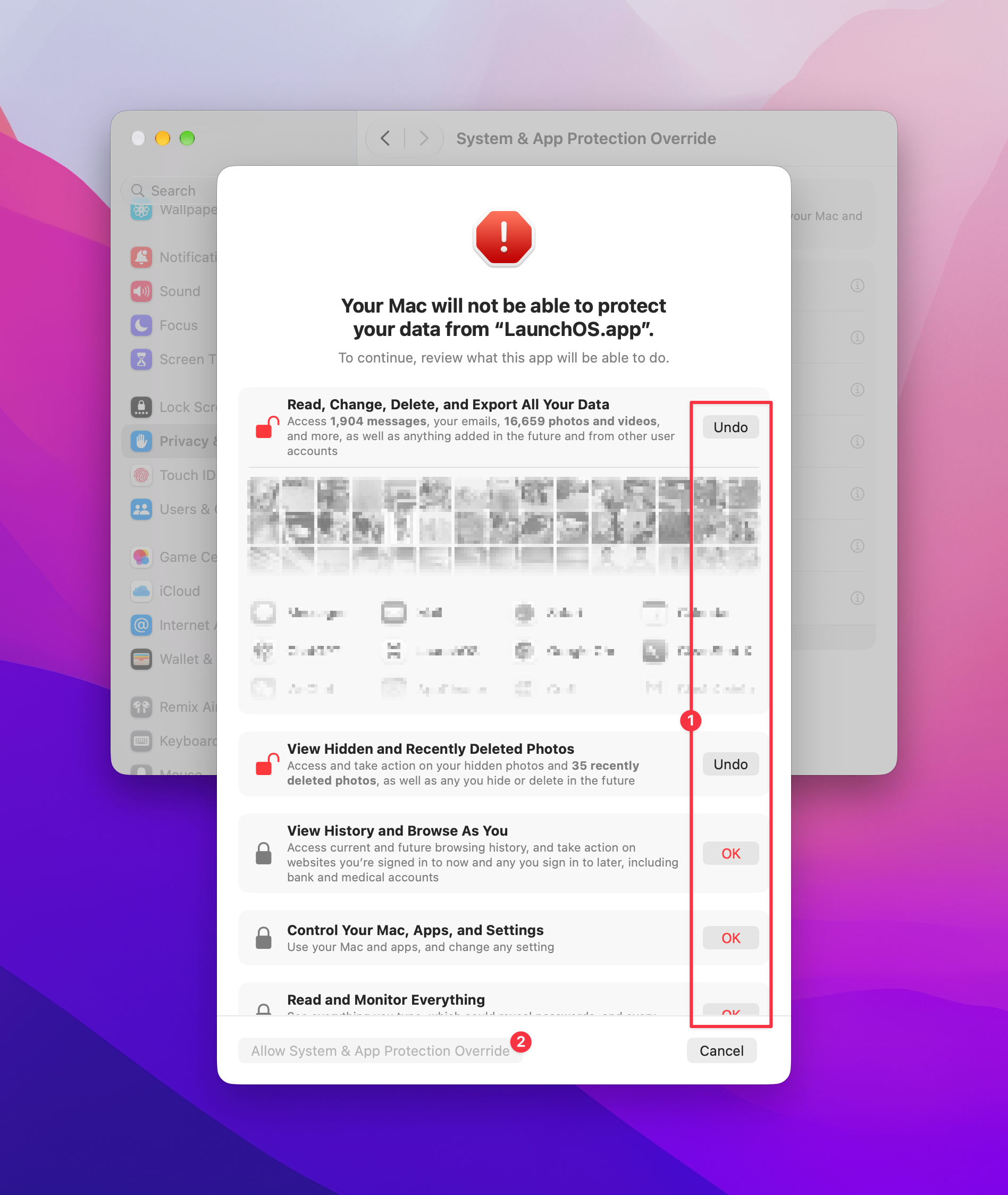
Apple split Device Control & Data Access into Accessibility and System & App Protection Override. LaunchOS uses the latter for gestures and F4. When you grant access for the first time, macOS explains what the app could see and control and asks you to acknowledge each capability. Apple’s developer announcement
Click the authorization button in LaunchOS. System Settings should open automatically. If it doesn’t, open System Settings > Privacy & Security > System & App Protection Override.
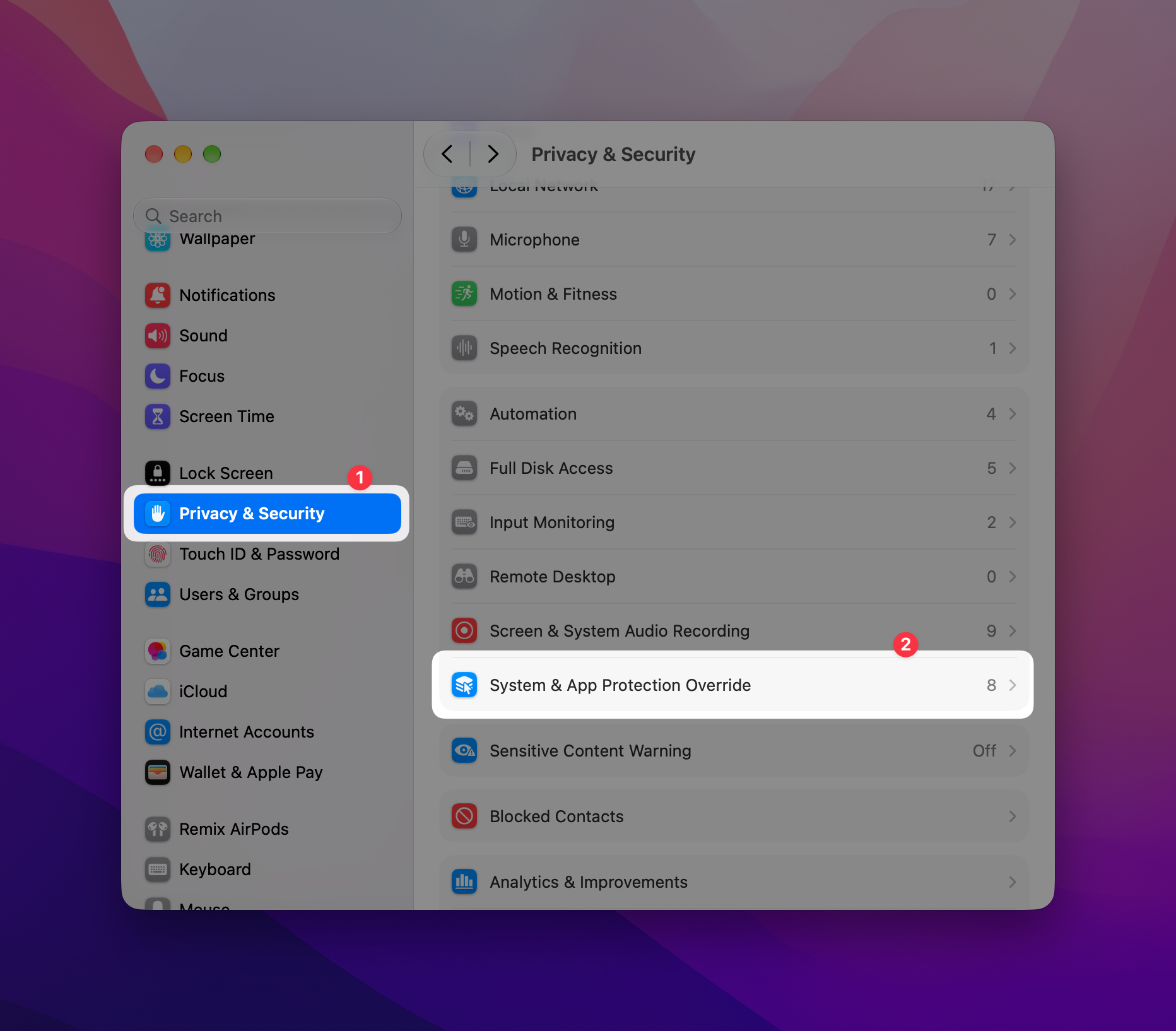
Click + at the bottom left of the app list.
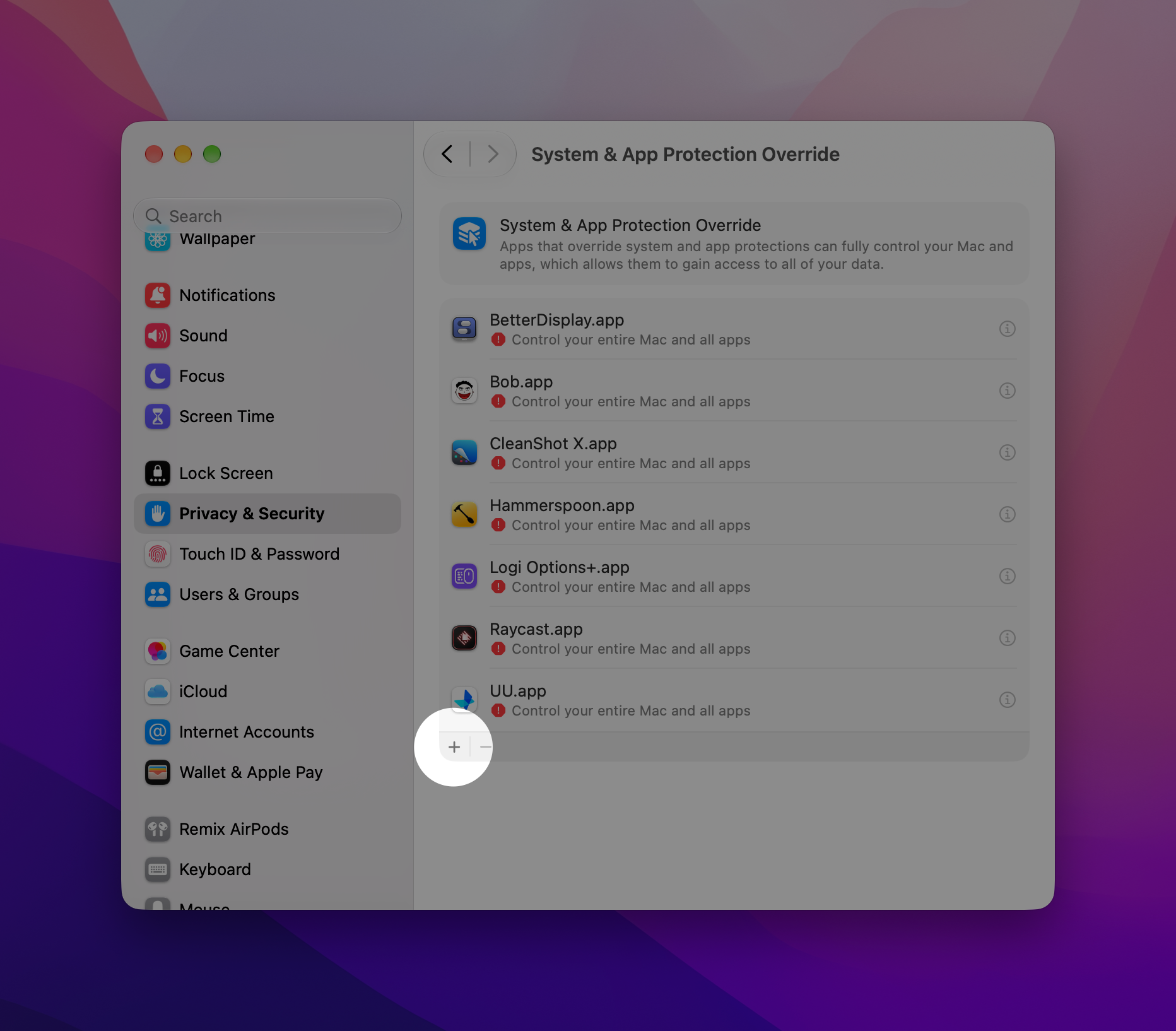
Select LaunchOS.app, usually in your Applications folder, and click Add.
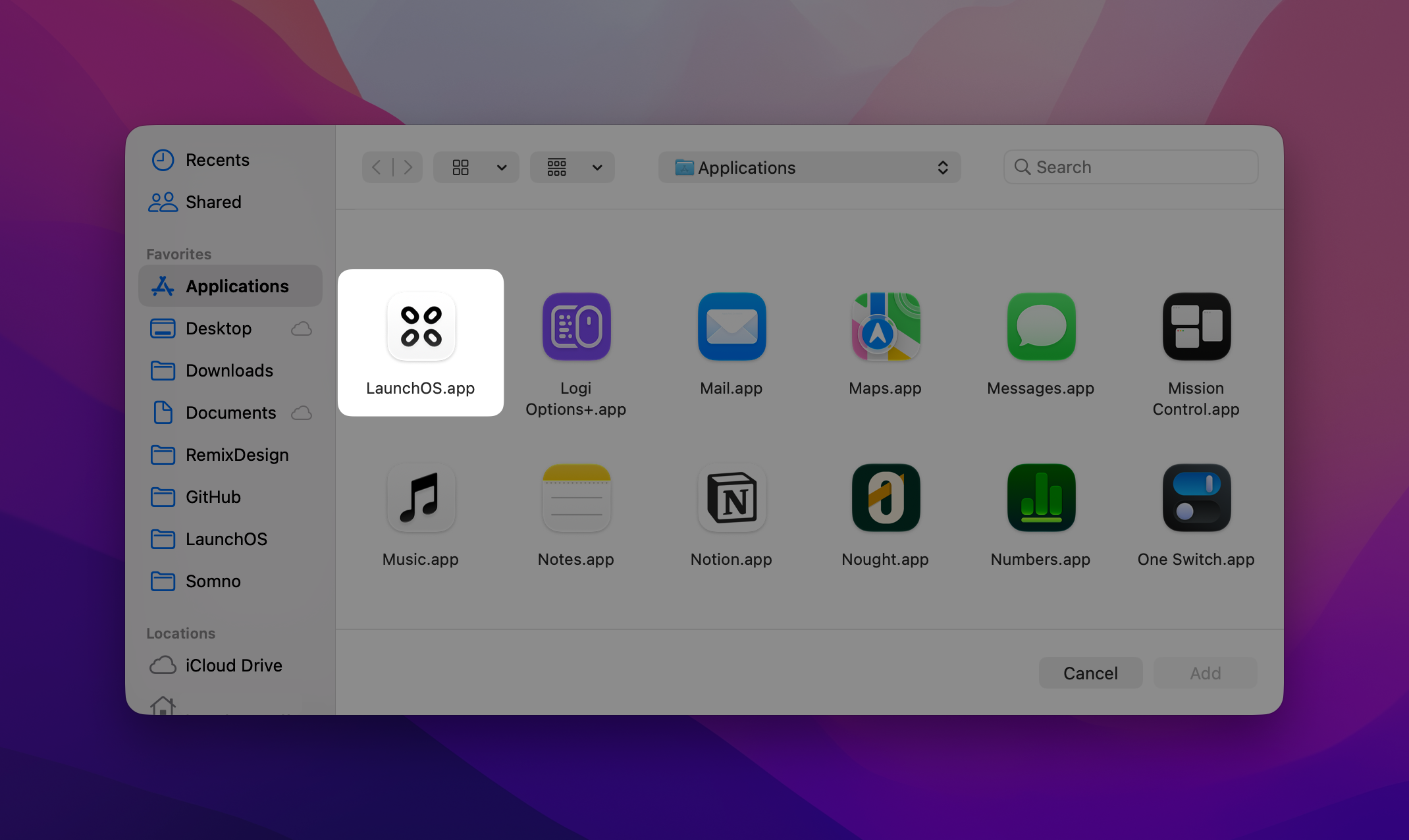
When macOS asks which apps LaunchOS can control, click Override System Protections at the bottom left.
Read each item and click its red OK button. Scroll down to acknowledge the remaining items, then click Allow System & App Protection Override at the bottom left. Return to LaunchOS and try the gesture or F4.
macOS 26 and versions of macOS 27 before 27.3 beta 2
Click the authorization button in LaunchOS. It should open System Settings and add LaunchOS to the list. Turn on the switch next to LaunchOS and enter your Mac login password when prompted.
- macOS 26 — Open System Settings > Privacy & Security > Accessibility.
- Earlier macOS 27 releases — Open System Settings > Privacy & Security > Device Control & Data Access.
If access is already enabled but the gesture or F4 still doesn’t work, quit LaunchOS. Remove it from the list, click + to add LaunchOS.app again, turn on the switch, and reopen LaunchOS.
Why does LaunchOS need this permission?
LaunchOS needs system-level access to recognize your pinch gesture or F4 key and open the launcher. Otherwise, macOS handles the input itself, for example by opening Spotlight’s Apps view (Apps.app). The permission covers more than a single gesture or key, so macOS lists the broader capabilities it grants.
LaunchOS requests access only for the features you enable. It handles gestures and keys locally, without reading your personal files or needing a network connection. It occasionally connects to verify your Pro license. If you only use the basic launcher features, you can revoke access in the same settings at any time. Full Disk Access for removing an app and its related files is a separate permission.


