

How to hide the blue menu bar indicator in macOS 27.3
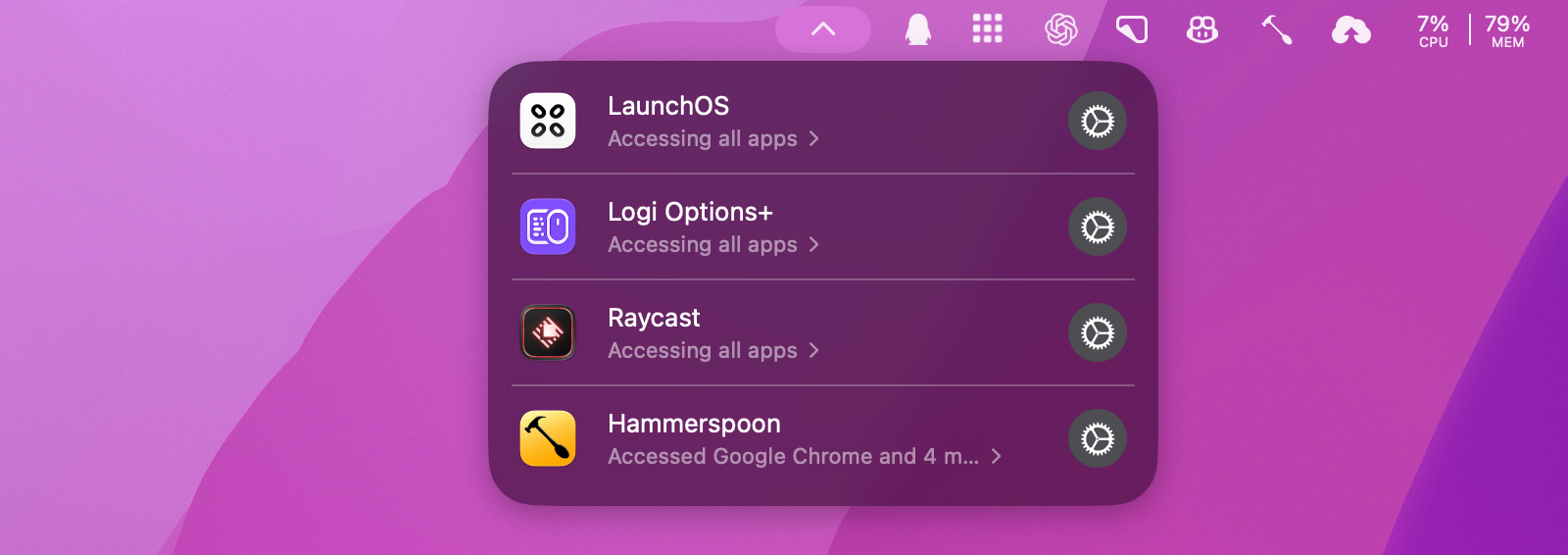
After updating to macOS 27.3, you may see a blue icon with a number in the menu bar. Click it to see which apps are using System & App Protection Override. You can hide the indicator in Terminal. If an unfamiliar app is what brought you here, open the list first and check whether that app still needs access.

What does the blue menu bar indicator mean?
Apple calls it a transparency indicator. It appears when an app uses System & App Protection Override to control another app. Click it to see the apps involved and their access scope. For example, Accessing all apps means the scope covers all apps. That line alone tells you little about which data the app actually used. Apple Developer announcement
What changed about system control permissions in macOS 27.3?
Keyboard remapping, gesture tools, and automation utilities have long used system permissions such as Accessibility. A utility that takes over a single key may still need a permission with a much broader scope. macOS 27.3 splits the previous Device Control and Data Access setting into System & App Protection Override and Accessibility. For new requests, you select the requesting app from a list in System Settings. Previously granted permissions remain in effect. Apple Developer announcement
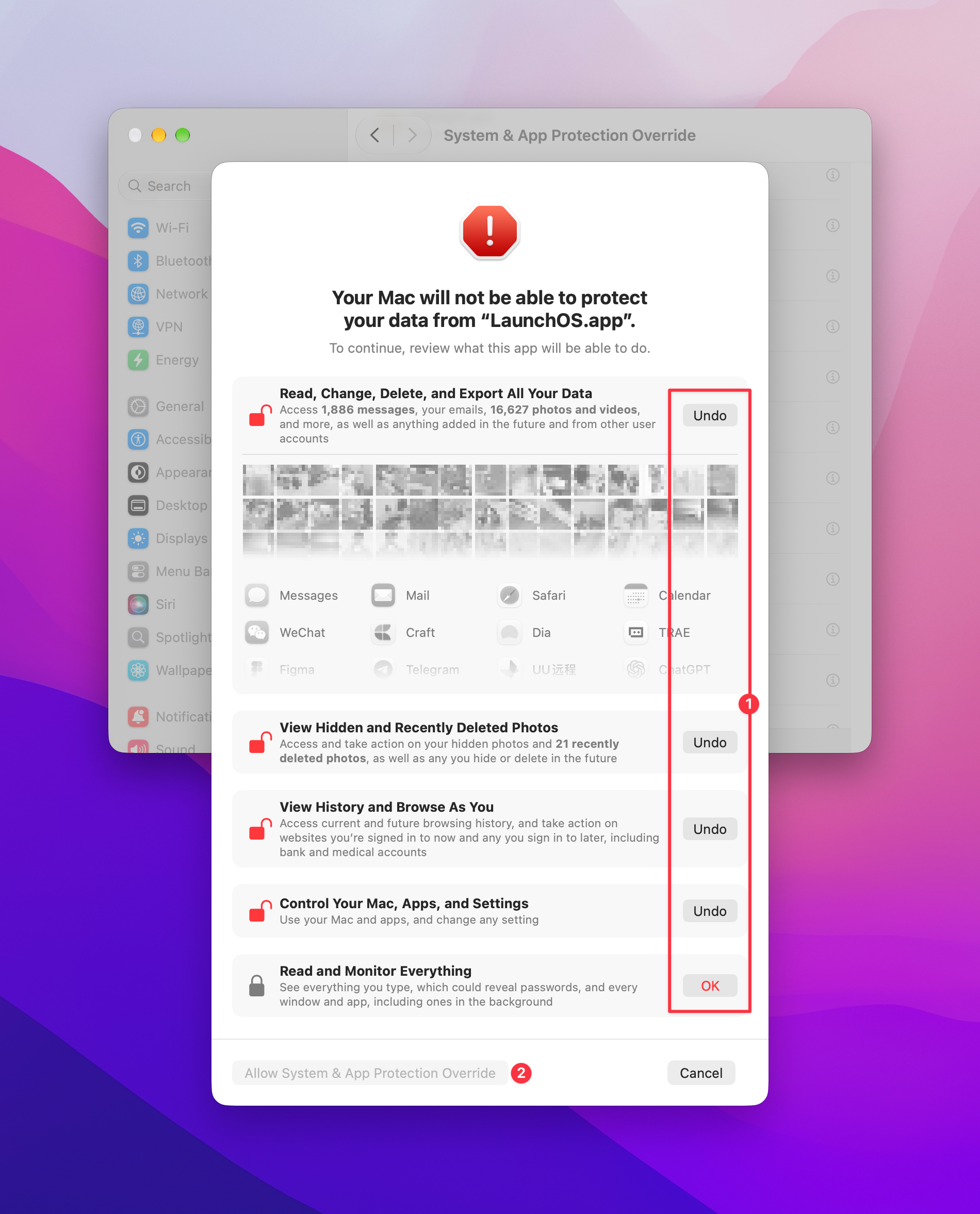
If you grant full System & App Protection Override, macOS asks you to acknowledge what that grant can enable, including access to photos, browsing history, and system settings. These confirmations are part of the same full grant. An app may only need a fraction of that access. Where the workflow allows it, you can limit access to specific apps or require a prompt each time. Full Disk Access has its own settings and can be limited to specific folders. Apple Developer announcement
Should I grant this permission?
Check which feature prompted the request. Consider granting access once you know you need the feature, can verify where the app came from and who developed it, and understand the scope it needs. Decline requests from unsigned apps, apps from unknown sources, or apps whose developers you cannot verify. If in doubt, ask the developer which feature needs access, whether disabling that feature removes the need, and whether you can limit access to specific apps.
The same checks are especially important for AI assistants that can act in other apps. If the task needs one app or folder, start there. Broad access can expose private email, photos, or work files in the course of a task. If the assistant processes information in the cloud, check what it sends. Apple on the risks of broad data access
LaunchOS is one example. It brings the classic Launchpad full-screen grid, folders, and pages back to the Mac. When you enable F4 or a trackpad gesture to open it, LaunchOS needs to intercept that input and replace the default macOS action with opening the launcher. Those triggers do not use photos or browsing history, though enabling them can bring up the broader system warning. If you open LaunchOS from the Dock, you can leave both triggers off and skip this permission. Explore and download LaunchOS
How to hide the blue menu bar indicator in macOS 27.3
To stop a particular app from triggering the indicator, turn off the feature using the permission or adjust its access under System Settings → Privacy & Security → System & App Protection Override. You can also expand the indicator and click the gear beside the app to open settings.
If you want to free up menu bar space while keeping your existing grants, use the Terminal workaround below. Zac Hall of 9to5Mac tested it on macOS 27.3 Beta 2 and confirmed the indicator disappeared after a restart. It hides this activity indicator for all apps and leaves their grants in effect. It uses an internal system flag, so behavior may differ in the final release or a later update. 9to5Mac’s tested instructions
Open Terminal.
Run the following commands in order. If prompted, enter your Mac administrator password and press Return. Terminal does not show characters as you type the password.
sudo mkdir -p /Library/Preferences/FeatureFlags/Domain
sudo defaults write /Library/Preferences/FeatureFlags/Domain/TCC AX_TRANSPARENCY_INDICATOR -dict Enabled -bool false
Restart your Mac.
How to restore the menu bar indicator
Run the following command in Terminal, then restart your Mac. It removes the indicator override so your version of macOS can use its default behavior again. Source for the restore command
sudo defaults delete /Library/Preferences/FeatureFlags/Domain/TCC AX_TRANSPARENCY_INDICATOR


